




How do I manage my google business page? Managing your Google Business Page efficiently allows your business to shine online, helping potential customers find you easily. Here’s a quick answer to help you get started:
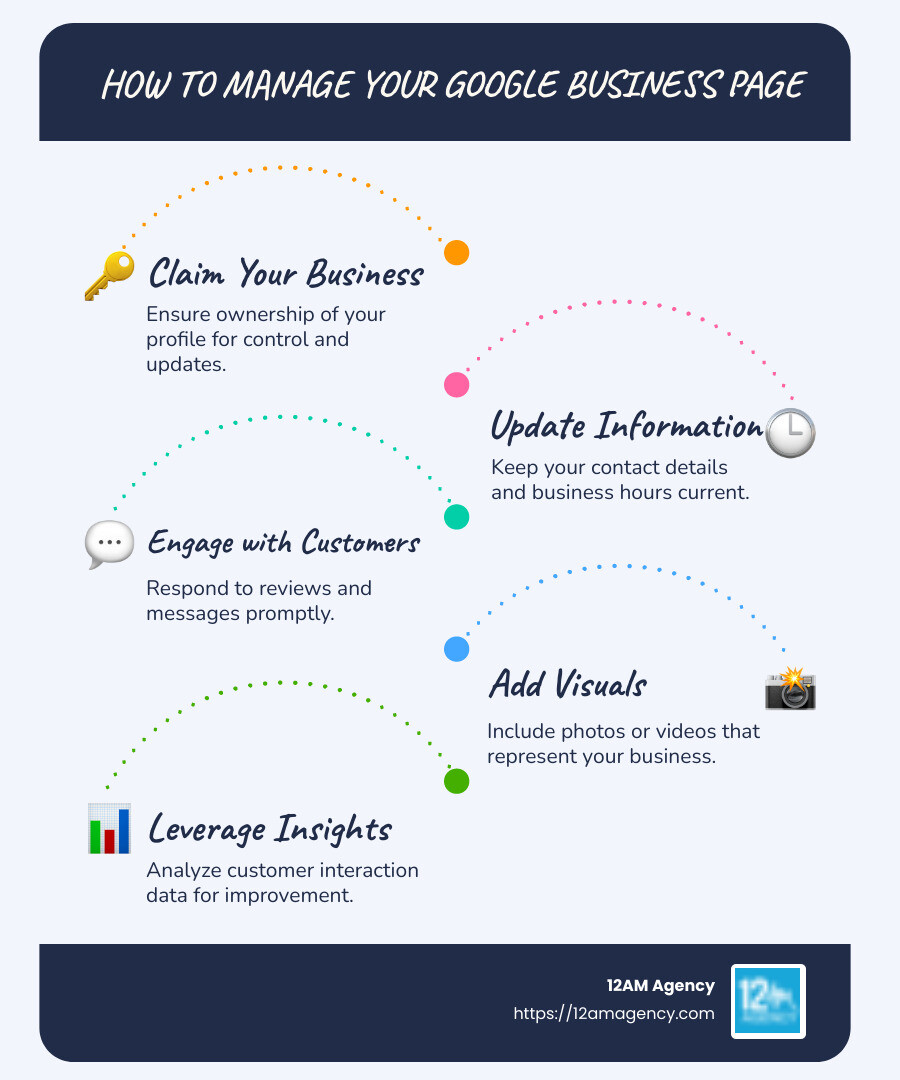
- Claim your business: Ensure you have ownership of your Google Business Profile.
- Update Information: Keep your business hours, address, and contact details current.
- Engage with Customers: Respond to reviews and messages promptly.
- Use visuals: Add photos or videos that represent your business well.
- Leverage insights: Analyze how customers find and interact with your page.
Establishing a vibrant online presence is crucial for businesses looking to grow. One of the simplest yet most impactful steps you can take is setting up and managing a Google Business Profile. This free tool provides a platform for businesses to showcase their unique offerings and engage with customers directly. By maintaining an active profile, businesses can improve their digital footprint, making it easy for customers to find them on Google Search and Maps.
I’m Robert Portillo, and my experience in digital marketing has given me invaluable insights into tackling challenges like “how do I manage my google business page.” My passion is helping businesses harness digital tools for significant growth. In the next sections, we’ll explore effective strategies to fully leverage your Google Business Page.
How do i manage my google business page vocab explained:
– google business profile manager login
– how to add managers to google my business
How Do I Manage My Google Business Page?
Managing your Google Business Page effectively is key to ensuring your business stands out online. Here’s how you can make the most of it using Google Search, Google Maps, and the Business Profile Manager.
Using Google Search
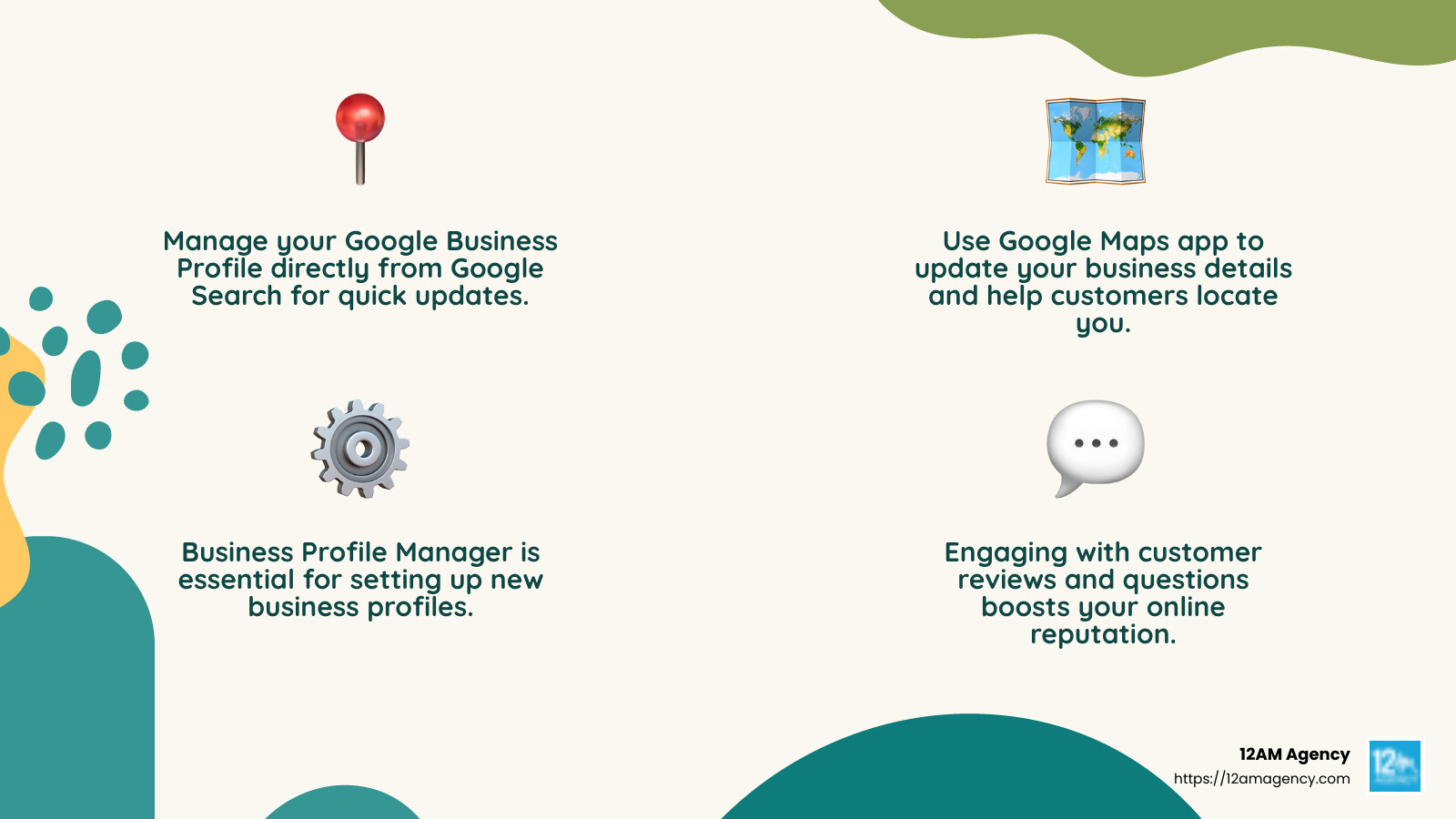
Start by searching for your business on Google Search. Once your business profile appears, you can manage it directly from the search results. Look for options like Edit Profile, Add Photo, and Read Reviews. These tools allow you to update essential information, upload engaging visuals, and respond to customer feedback—all without leaving the search page.
Navigating Google Maps
The Google Maps app is a powerful tool for managing your business profile on the go. After downloading the app, tap on the Business tab at the bottom right to access your profile. Here, you can update your business hours, address, and other details. The app also allows you to add photos and see how your business appears on the map, helping customers locate you easily.
Business Profile Manager
For businesses planning to open soon, the Business Profile Manager is crucial. If your opening date is more than 90 days away, this tool helps you set up and manage your profile beforehand. Once your business is up and running, you can switch to using Google Maps and Search for ongoing management.
Tip: Always ensure your business information is accurate and up-to-date. This not only improves your visibility but also builds trust with potential customers.
Engaging with Customers
Responding to reviews and questions through your Google Business Page is vital for customer engagement. Positive interactions can improve your reputation and encourage more people to choose your business. Use the tools available on Google Search and Maps to stay connected with your audience.
See exactly where your profile stands right now.
Our GBP audit shows your current rank position across your market, how your profile completeness scores against competitors, and the specific gaps holding you back from the Map Pack.
Managing your Google Business Page isn’t just about keeping details current—it’s about creating a dynamic online presence that attracts and retains customers.
In the following sections, we’ll dive deeper into setting up your Google Business Profile effectively.
Setting Up Your Google Business Profile
Setting up your Google Business Profile is the first step to enhancing your business’s online presence. Here’s how to get started by claiming your profile, personalizing details, and adding photos.
Claim Your Profile
Before you can manage your Google Business Page, you need to claim your profile. This ensures you have control over the information displayed about your business. To claim your profile, visit the Google Business page and follow the prompts to find your business. If it’s already listed, select it and complete the verification process. This might involve receiving a postcard, phone call, or email with a verification code.
Tip: Ensure your business name and address match those on your legal documents to avoid any verification issues.
Personalize Your Details
Once your profile is claimed, it’s time to personalize it. Start by updating your business details, such as your address, phone number, and hours of operation. Make sure this information is accurate and consistent across all platforms to improve your local SEO. Google uses this data to help potential customers find you, so keep it current.
Add a Business Description: Craft a clear and concise description of your business. Use relevant keywords to help your profile appear in search results. This description should highlight what makes your business unique and why customers should choose you over competitors.
Add Photos
High-quality photos are essential for attracting customers. Upload images that showcase your products, services, and the overall atmosphere of your business. According to Google My Business, businesses with photos receive 42% more requests for directions and 35% more click-throughs to their websites.
Types of Photos to Include:
- Exterior and Interior Shots: Help customers recognize your location and get a feel for your space.
- Product Photos: Showcase your offerings to entice potential buyers.
- Team Photos: Humanize your business by introducing your team.
Tip: Regularly update your photos to keep your profile fresh and engaging.

Verification and Profile Strength
After setting up your profile, ensure it’s verified. Only verified profiles can access all features, such as the Profile Strength Indicator, which helps identify missing information and suggests improvements. Keeping your profile complete and updated not only boosts its strength but also improves your visibility on Google Search and Maps.
By setting up your Google Business Profile effectively, you lay the foundation for a robust digital presence. In the next section, we’ll explore how to optimize your Google Business Page for better visibility.
Optimizing Your Google Business Page for Better Visibility
Now that your Google Business Profile is set up, let’s dive into how to optimize your Google Business Page for better visibility. This involves using SEO strategies, encouraging customer reviews, and improving your local search ranking.
SEO Strategies
Search Engine Optimization (SEO) is key to increasing your business’s visibility online. Start by ensuring your business information is complete and accurate. This includes your business name, address, phone number, and business hours. Consistency across all platforms is crucial.
Use Keywords Wisely: Incorporate relevant keywords into your business description and services. For instance, if you’re a “defense lawyer in Austin,” make sure this phrase is part of your profile. This helps Google understand what your business offers and improves your chances of appearing in relevant searches.
Choose the Right Category: Selecting the appropriate category for your business is vital. It helps Google place your business in the right context, increasing your visibility. According to TechRadar, 84% of business profile views come from discovery searches, so this step is crucial.
Customer Reviews
Customer reviews are powerful. They not only build trust but also influence your ranking in local search results. Encourage satisfied customers to leave positive reviews on your profile.
Engage with Reviews: Respond to customer reviews, both positive and negative. This shows you value customer feedback and can improve your reputation. Engaging with reviews can also boost your profile’s visibility, as Google favors active engagement.
Local Search Ranking
Improving your local search ranking is essential for attracting nearby customers. Local SEO involves optimizing your profile to appear in local search results and on Google Maps.
Add Location-Specific Content: Include your city or neighborhood in your business description and updates. This helps Google associate your business with local searches, like “pizza shop in Brooklyn.”
Use High-Quality Images: Visual content is crucial. Businesses with photos see a significant increase in engagement. Regularly update your images to keep your profile fresh and appealing.
Monitor Insights: Use the insights provided by Google to understand how customers find your business. This data can guide your marketing strategy and help you make informed decisions to improve visibility.
By focusing on these strategies, you can improve your Google Business Page and attract more customers. In the next section, we’ll explore how to engage with customers through your Google Business Page.
Engaging with Customers Through Your Google Business Page
Engaging with customers on your Google Business Page is essential for building relationships and enhancing your business’s reputation. Let’s explore effective ways to connect with your audience through reviews, direct messaging, and posts.
Respond to Reviews
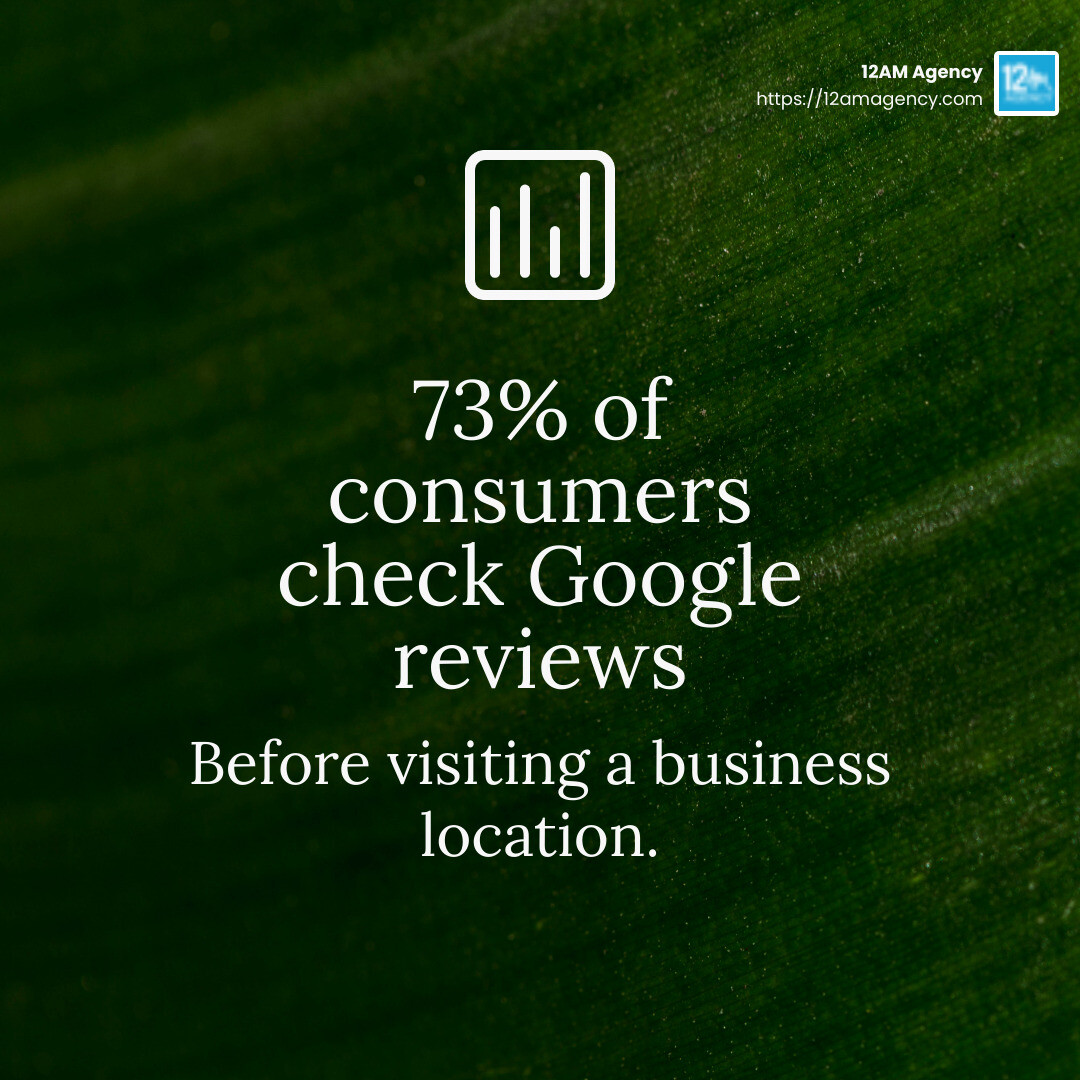
Customer reviews are a goldmine for engagement. A study by BrightLocal found that 79% of consumers trust online reviews as much as personal recommendations. Responding to these reviews shows that you care about customer feedback and are committed to improving their experience.
- Positive Reviews: Thank customers for their kind words. A simple “Thank you for your feedback!” can go a long way.
- Negative Reviews: Address issues professionally. Apologize if necessary, and offer solutions or invite the customer to discuss the matter privately. This approach can turn a negative experience into a positive one.
Responding to reviews can improve your business’s visibility on Google. Active engagement signals to Google that your business is trustworthy and customer-focused.
Direct Messaging
Direct messaging allows for private communication with customers. It’s a great way to handle inquiries or resolve issues without airing them publicly. To make the most out of direct messaging:
- Be Prompt: Respond quickly to messages. Customers appreciate timely replies.
- Be Professional: Keep the tone friendly and professional. Clear and concise communication is key.
- Use Messaging Tools: Google provides tools to manage messages efficiently. Familiarize yourself with these features to streamline communication.
Update Posts
Google Posts are similar to social media updates and are a powerful way to keep your audience informed. By posting updates, you can share promotions, events, or news directly on your Google Business Page.
- Be Consistent: Regularly update your posts to keep your content fresh and engaging.
- Use Visuals: Include images or videos to make your posts more appealing.
- Include a Call to Action (CTA): Encourage customers to take action, such as “Learn More” or “Get Offer.”
Google Posts appear in search and map results, increasing your business’s visibility. You can also track how many people view and interact with your posts, helping you refine your strategy.
By actively engaging with customers through reviews, direct messages, and posts, you can strengthen relationships and improve your business’s online presence. Next, we’ll address common questions about managing your Google Business Page.
Frequently Asked Questions about Managing Your Google Business Page
Managing your Google Business Page effectively is crucial for maintaining a robust online presence. Let’s address some common questions that business owners often have.
How do I edit my Google My Business page?
This is the work we do for you. Every week, without exception.
Managing GBP at this level takes 6–8 hours a week when done right. Nova handles the entire system — posts, photos, reviews, Q&A, citations, heatmap tracking — so you can focus on running your business.
Editing your Google My Business page is straightforward. Whether you’re updating your business hours, address, or adding new services, here’s how you can do it:
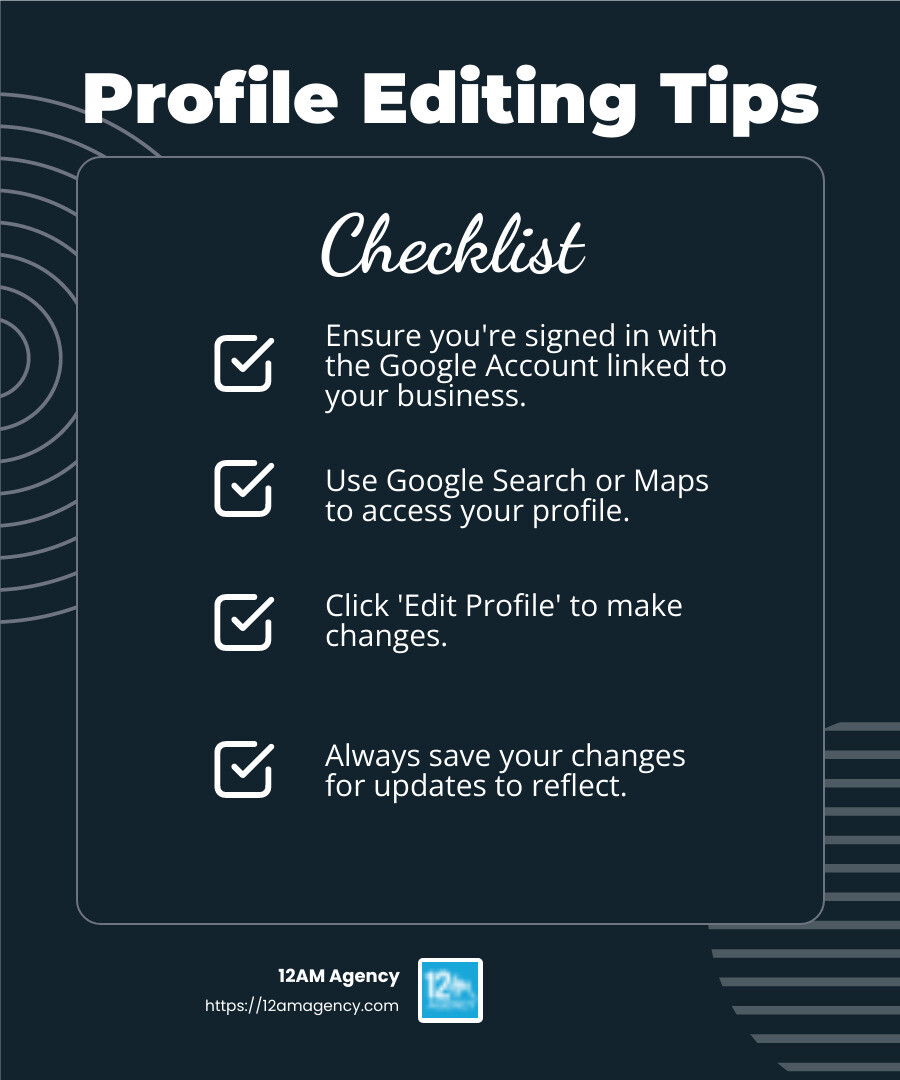
- Access Your Profile: Go to Google Search or Google Maps. Ensure you’re signed in with the Google Account linked to your business.
- Select ‘Edit Profile’: Once on your business profile, click on the option to edit your profile. This is where you can make changes to your business information.
- Update Details: You can update your business name, location, hours, and more. Ensure all information is accurate and up-to-date.
- Save Changes: After making edits, don’t forget to save your changes. This ensures your updates are reflected on your Google Business Page.
How do I maintain my Google business page?
Keeping your Google business page fresh and relevant requires regular maintenance. Here’s how to stay on top of it:
- Regular Updates: Ensure your business information is always current. Update holiday hours, new services, or changes in contact information promptly.
- Monitor Reviews: Regularly check and respond to customer reviews. Engaging with reviews can improve your local search ranking and build customer trust.
- Post Updates: Use Google Posts to share news, promotions, or events. This keeps your audience informed and engaged.
Consistent updates not only keep your customers informed but also signal to Google that your business is active and reliable.
How do I remove products from my Google business profile?
If you need to remove products from your Google Business Profile, especially if you’re using the Merchant Center, follow these steps:
- Access Merchant Center: Visit the Google Merchant Center where your products are listed.
- Select Products: Steer to the products section and find the items you wish to remove.
- Delete Items: You can delete products individually or in bulk. Make sure to confirm the deletion to ensure they are removed from your profile.
Removing outdated or unavailable products helps maintain the accuracy of your business offerings and prevents customer confusion.
By understanding how to edit, maintain, and manage your Google Business Page, you can ensure your business remains visible and appealing to customers. Next, let’s explore some advanced strategies for optimizing your Google Business Page for better visibility.
Conclusion
At 12AM Agency, we know that managing your Google Business Page is just the beginning of a successful digital marketing journey. Our expertise lies in crafting personalized strategies that align with your unique business goals. Whether you’re a law firm in Texas or a local retailer, we tailor our services to meet your specific needs.
Digital marketing is constantly evolving, and staying ahead can be challenging. That’s where we come in. Our team specializes in a range of services, from SEO and PPC to website design and mobile app development. We focus on delivering results-driven strategies that not only improve your online presence but also drive measurable success.
By partnering with us, you gain access to a wealth of knowledge and tools designed to optimize your Google Business Page and beyond. We ensure that your business stands out in local searches, attracts more customers, and builds a strong online reputation.
Ready to take your digital marketing to the next level? Explore our services and find how we can help your business thrive in the digital world.
In a digital landscape that’s more competitive than ever, let 12AM Agency be your guide to success. With our personalized approach and proven strategies, your business will not just survive but thrive.

