




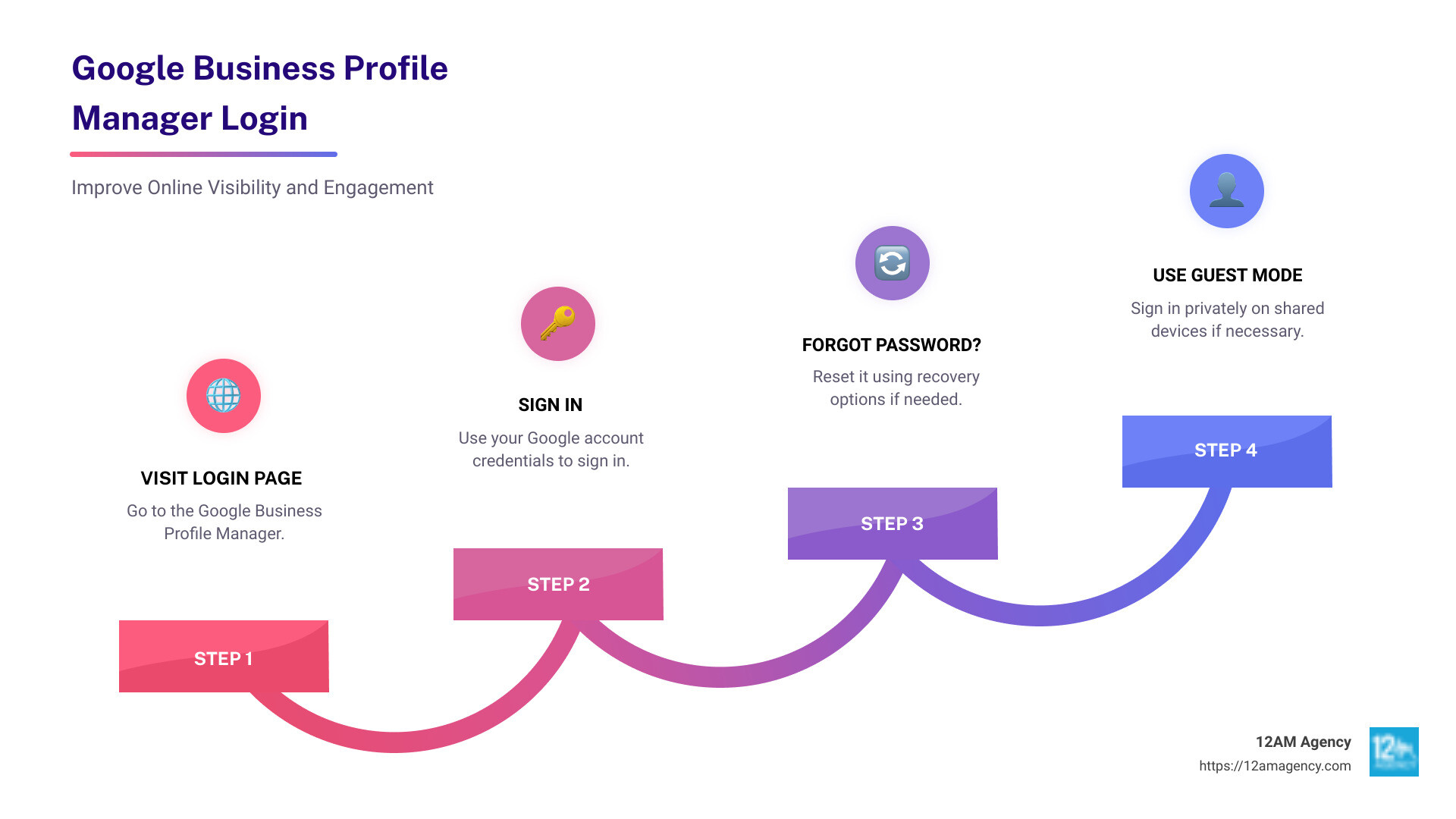
Google business profile manager login is your gateway to managing your digital presence on Google. Whether you operate a busy café or a local law firm, access to this tool can skyrocket your business visibility and engagement online. Jump into management with this quick sign-in process:
- Visit the Login Page: Go to the Google Business Profile Manager.
- Click ‘Sign In’: Use your Google account credentials.
- Forgot Password?: Reset it using recovery options if needed.
- Use Guest Mode if necessary: For private sign-ins on shared devices.
When your business is easily findable and engaging, it can lead to boosted sales and a stronger brand presence. Without a Google Business Profile, you might be leaving your business out of the digital conversation.
As Robert Portillo, I bring years of digital marketing expertise to help businesses optimize their Google business profile manager login. With a background in engineering and marketing, my goal is to simplify digital challenges for your business’s online growth.
How to Log into Google Business Profile Manager
Accessing your Google Business Profile Manager is straightforward. Follow these simple steps to get started:
-
Visit the Login Page: Navigate to the Google Business Profile Manager using your web browser.
-
Enter Your Email or Phone: Provide the email or phone number linked to your Google account. This is your key to accessing your business profile.
-
Forgot Email?: If you can’t recall your email, click on “Forgot email?” Google will guide you through recovering your account using alternate methods, like verifying your phone number or answering security questions.
-
Use Guest Mode: If you’re on a shared or public computer, select “Guest mode” for a private session. This ensures your login information stays secure.
-
Create a New Account: If you don’t have a Google account, click on “Create account” to set one up. This will allow you to manage your business profile effectively.
Setting Up Your Google Business Profile
Creating a Google Business Profile is your first step towards getting noticed on Google Search and Maps. Here’s how to get started.
Verifying Your Business Profile
-
Create Your Profile: Begin by signing into your Google Account. If you don’t have one, you’ll need to create it using your business email domain. Go to the Google Business Profile Manager and click on “Create a profile.”
-
Enter Business Name: Type in the name of your business. If your business already appears in the suggestions, select it. If someone else has verified your business, you’ll need to request ownership.
-
Select Business Category: Choose the category that best describes your business. This helps Google show your profile in relevant searches.
-
Specify Service Area: If you don’t have a physical storefront, define your service area. You can list up to 20 areas, but don’t extend beyond a 2-hour drive from your base.
-
Verification Options: Before your profile can appear on Google, it needs to be verified. Options include:
- Mail: Google sends a postcard with a verification code to your business address.
- Phone or Email: Some businesses may receive a verification code via phone or email.
-
Instant Verification: If you’ve already verified your business with Google Search Console, you might qualify for instant verification.
-
Requesting Ownership: If your business is already verified by someone else, you can request ownership. Follow the prompts to submit your request, and Google will contact the current owner.
Personalizing Your Business Profile
Once verified, it’s time to make your profile stand out.
-
Add Business Hours: Ensure your operating hours are accurate. This helps customers know when you’re open.
-
Upload Photos: Visuals are crucial. Add high-quality images of your storefront, products, or services. This can significantly improve your profile’s appeal.
-
Create Posts: Keep your audience engaged with regular posts. Share updates, offers, or events. This keeps your profile dynamic and informative.
-
Include Offers and Menu: If applicable, add special offers or your menu. This feature is especially beneficial for restaurants and cafes, allowing customers to explore your offerings before visiting.
By following these steps, you can create and personalize your Google Business Profile, making it a valuable tool for attracting and engaging with potential customers.
See exactly where your profile stands right now.
Our GBP audit shows your current rank position across your market, how your profile completeness scores against competitors, and the specific gaps holding you back from the Map Pack.
Managing Your Google Business Profile
Using Google Maps and Search for Management
Once your Google Business Profile is set up and verified, managing it becomes essential to keep your information up-to-date and engaging for potential customers. You can do this directly through the Google Maps app and Google Search.
Edit Profile: To make changes to your business details, simply search for your business on Google Search and click on the “Edit profile” option. This allows you to update contact information, business hours, and more. On the Google Maps app, tap “Business” at the bottom right to access your profile and start editing.
Add Photos: Photos can make your business profile more attractive. Use the Google Maps app to upload high-quality images of your business, products, or services. This visual content can help you stand out and attract more customers.
Read and Respond to Reviews: Reviews are crucial for building trust with your customers. From Google Search, you can read and respond to reviews directly. Engaging with customers by thanking them for positive feedback or addressing concerns in negative reviews shows that you value their input and are committed to improving their experience.
Adding and Managing Users
Managing your business profile doesn’t have to be a solo effort. You can add others to help manage your profile, which is especially useful for businesses with multiple locations or managers.
Add Owners and Managers: To share management duties, you can add other Google accounts as owners or managers. Owners have full control, while managers have limited access. This division of roles ensures that your business information remains secure while allowing others to help with updates.
Access Levels: It’s important to understand the different access levels. Owners can add or remove users and edit all business information. Managers can update business information and respond to reviews but cannot add or remove users.
Invite Users: To add someone, go to the Google Business Profile Manager, select “Users,” and click the “Invite new users” button. Enter the email address of the person you want to invite and assign the appropriate role. They will receive an invitation to join and help manage your business profile.
By effectively using Google Maps, Google Search, and the Business Profile Manager, you can keep your profile active and engaging, making it a powerful tool for local SEO and customer interaction.
Optimizing Your Google Business Profile
Improving Local SEO
Optimizing your Google Business Profile is crucial for boosting your local SEO and attracting more customers. Here’s how you can improve your profile’s visibility:
Profile Strength Indicator: This tool helps you identify missing information in your profile. Ensure that details like your business description, hours, and contact info are complete. A robust profile not only looks professional but also ranks better in local searches.
Keywords: Use relevant keywords in your business description and posts. For instance, if you run a bakery in Austin, include terms like “Austin bakery” or “best pastries in Austin.” This increases the chances of your business appearing in local search results.
Customer Insights: Google provides insights into how customers find your business. Use this data to understand which keywords are driving traffic and tailor your content accordingly. Knowing your audience’s behavior can guide you in making informed decisions to improve your profile.
Local Ranking: Regularly update your profile with posts and photos. This activity signals to Google that your business is active, which can positively impact your local ranking. Engaging content keeps your audience interested and encourages more interactions.
Customer Reviews: Reviews are a goldmine for local SEO. Encourage satisfied customers to leave positive reviews and respond to them promptly. Addressing feedback, whether positive or negative, shows potential customers that you value their opinions and are committed to providing excellent service.
Utilizing Google Business Features
Google offers several features to improve your business profile and cater to customer needs. Here’s how to make the most of them:
Food Orders and Reservations: If you’re in the food industry, you can enable options for customers to place orders or make reservations directly from your profile. This convenience can lead to more business and satisfied customers.
Product Listings: Showcase your products by adding them to your profile. Include high-quality images and detailed descriptions to attract potential buyers. This feature is especially beneficial for retail businesses looking to boost online visibility.
Service Offerings: Clearly list the services you provide. This helps customers understand what you offer and can lead to more inquiries and bookings. Use descriptive language and relevant keywords to make your services stand out.
By leveraging these Google Business features, you improve the customer experience and increase your chances of appearing in relevant local searches. Keep your profile dynamic and engaging to maintain a competitive edge in your local market.
Frequently Asked Questions about Google Business Profile Manager Login
How do I log into my Google Business Profile Manager?
Logging into your Google Business Profile Manager is straightforward. You need to have a Google Account, which is the same account used for other Google services like Gmail or YouTube.
-
Open Google Maps or Google Search: You can access your business profile through both platforms. Simply go to Google Maps or Google Search.
-
Sign in: Click on the profile icon in the top right corner and sign in using your Google Account credentials. If you don’t have an account, you’ll need to create one.
-
Access Your Business Profile: Once logged in, search for your business name. If you manage multiple profiles, make sure to select the correct one.
If you encounter issues signing in, like forgetting your email, use the “Forgot email?” link to recover your account. You can also use “Guest mode” for a private session, though this won’t allow you to manage your profile.
How can I check my business profile on Google?
To check your business profile:
-
Use Google Search: Type your business name and city into the search bar. Your business profile should appear in the search results.
-
Google Maps: Open the Google Maps app and enter your business name. This will display your business location and profile details.
This is the work we do for you. Every week, without exception.
Managing GBP at this level takes 6–8 hours a week when done right. Nova handles the entire system — posts, photos, reviews, Q&A, citations, heatmap tracking — so you can focus on running your business.
For a more private view, you can browse in incognito mode to see how others view your profile without being logged in.
What is the Google Business Profile Manager?
The Google Business Profile Manager is a powerful tool for managing your local business’s presence on Google products like Maps and Search. It allows you to:
-
Update Business Information: Adjust your hours, add a website, or update contact details to keep your information current.
-
Add Photos and Posts: Improve your profile with engaging content to attract more customers.
-
Respond to Reviews: Connect with customers by responding to their reviews and questions.
This tool is essential for any business owner looking to improve their local SEO and engage with their community. By keeping your profile updated, you ensure that potential customers have the most accurate and appealing information about your business.
Conclusion
Managing your business’s online presence has never been more crucial. The Google Business Profile Manager provides a robust platform for maintaining your business’s visibility on Google Maps and Search. By keeping your profile updated and engaging, you can significantly improve your local SEO and connect with your community.
Key Benefits Recap:
-
Improved Visibility: A well-maintained profile boosts your business’s visibility in local search results, attracting more potential customers.
-
Customer Engagement: By responding to reviews and updating posts, you foster a community around your brand and build trust with your audience.
-
Streamlined Management: With features like profile editing and user management, you can efficiently oversee multiple locations and profiles.
At 12AM Agency, we understand the importance of a personalized, results-driven strategy. Our team specializes in digital marketing, offering services such as SEO, PPC, website design, and mobile app development. We tailor our services to meet your specific needs, ensuring that your business stands out in the digital landscape.
If you’re looking to boost your business’s online presence, consider partnering with us. Our law firm SEO services in Texas are just one example of how we can help you achieve your marketing goals.
Your Google Business Profile is more than just an online listing—it’s a gateway to connecting with your customers and growing your business. Let’s make it work for you!


