




When learning how to add managers to Google My Business, you’ll recognize its worth in boosting your online presence through effective delegation. Here’s a quick answer:
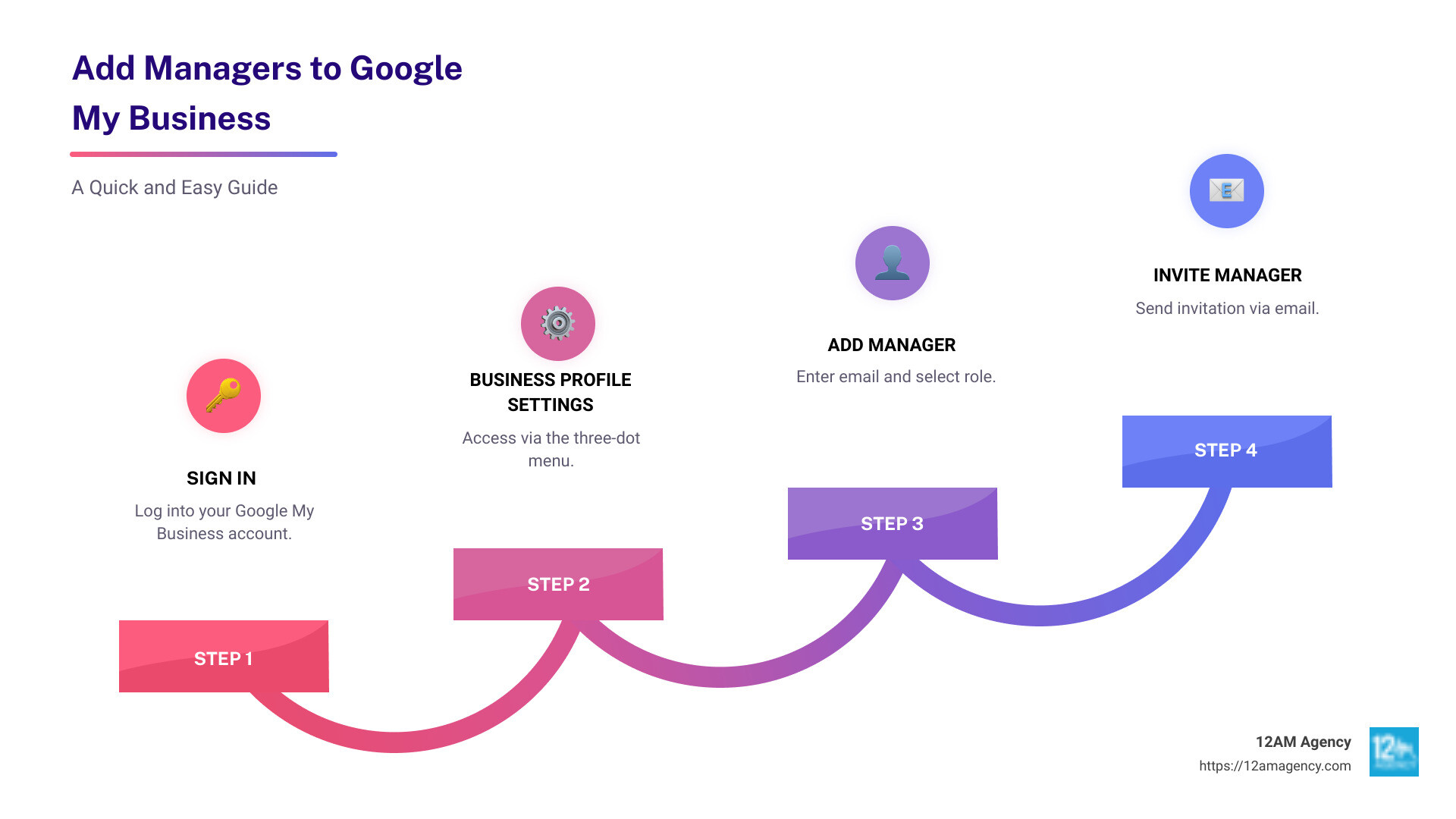
- Sign In to your Google My Business account.
- Open the Business Profile Settings via the three-dot menu.
- Select Managers, then click Add Manager.
- Enter the manager’s email and select their role.
- Click Invite.
As a business expands, maintaining every aspect of its digital footprint gets overwhelming. Delegating tasks within Google My Business (GMB) improves efficiency. Optimized GMB profiles can attract up to 70% more local customers. This is where our digital marketing expertise at 12AM Agency thrives—helping your business soar with an improved online strategy.
I’m Robert Portillo, a seasoned expert in digital marketing with a robust foundation in guiding businesses on how to add managers to Google My Business. I’ve helped many clients steer and master the GMB landscape, ensuring strong digital engagements.
Why Add Managers to Your Google My Business Profile?
Managing your business’s online presence is no small feat, especially as your company grows. Adding managers to your Google My Business (GMB) profile can transform how you handle digital responsibilities. Here’s why:
Delegation of Tasks
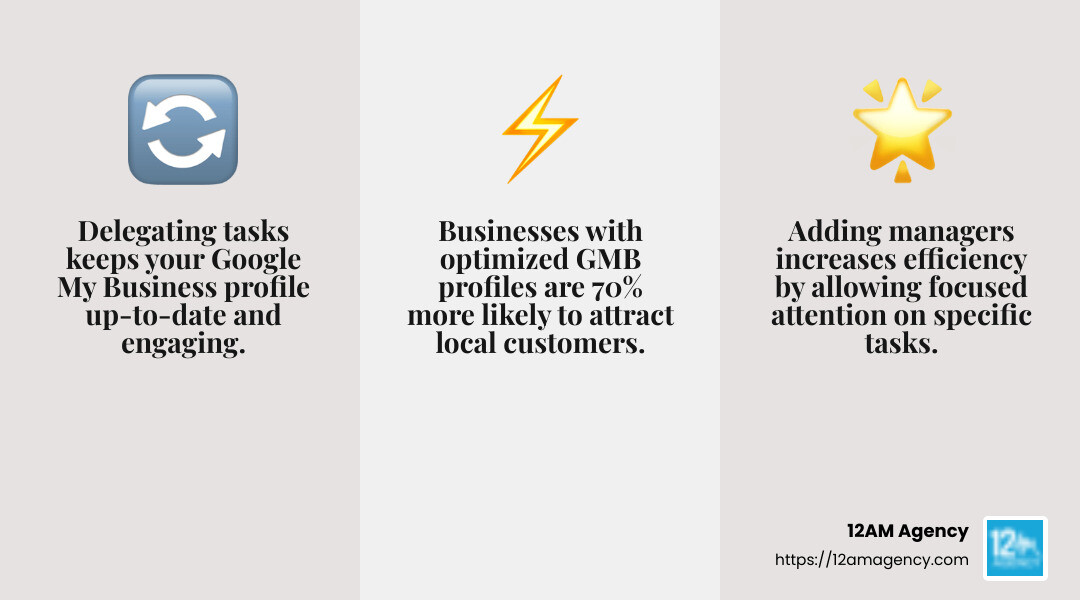
When you add managers, you distribute the workload. No longer is one person juggling everything from updating business hours to responding to reviews. Instead, tasks are divided among team members, allowing each to focus on specific areas. This delegation ensures that nothing falls through the cracks, and your GMB profile remains up-to-date and engaging.
Increased Efficiency
Time is money. By spreading out responsibilities, you free yourself to concentrate on what you do best—running your business. Managers can handle day-to-day online tasks, which means you can focus on strategic growth and customer service. This increased efficiency is crucial for maintaining a competitive edge.
Improved Customer Engagement
Timely responses to customer inquiries and reviews can significantly impact your business’s reputation. With multiple managers, you ensure that customer interactions are swift and effective. Businesses with optimized GMB profiles are 70% more likely to attract local customers, highlighting the importance of quick and thoughtful engagement.
Improved Accuracy
Multiple managers contribute to keeping your business information accurate and current. Whether it’s updating contact details or adding new photos, having several sets of eyes ensures that your profile reflects the latest and most relevant information. This accuracy builds trust with potential customers and improves your local search visibility.
By understanding the benefits of adding managers to your GMB profile, you can empower your team to handle your online presence more effectively. This strategy not only improves your digital footprint but also supports your business goals.
Next, we’ll dive into the step-by-step guide on how to add managers to your Google My Business profile, ensuring that you can easily implement these strategies and see the benefits firsthand.
How to Add Managers to Google My Business
Ready to empower your team and streamline your online management? Let’s walk through the step-by-step guide on how to add managers to your Google My Business profile. This will help you distribute tasks and keep your business information accurate and engaging.
Step 1: Sign in to Your Google My Business Account
First things first, you’ll need to sign in. Ensure you’re using the Google account that’s the primary owner of your Google Business Profile. Once logged in, simply search for your business name on Google. If you’re in the right account, your business dashboard will appear.
Step 2: Steer to Business Profile Settings
Next, locate the three-dot menu icon at the top right of your business dashboard. Click it to reveal a drop-down menu. From there, select Business Profile Settings. This will lead you to the People and Access section, where you can manage who has access to your profile.
Step 3: Add a New Manager
In the People and Access section, you’ll see a list of current owners and managers. To add someone new, click the Add button at the top. Enter the email address of the person you want to invite as a manager. Here, you’ll also select the manager role, which allows them to update the profile but not add or remove other users. Hit the Invite button to send out the email invitation.
Step 4: Confirm and Manage Invitations
Once you send the invitation, the new manager will receive an email notification. It’s always a good idea to check in with them to ensure they’ve received it. They need to accept the invitation via the email to gain access. After they accept, you’ll receive a notification email confirming their addition to your team.
By following these steps, you can efficiently add managers to your Google My Business profile, ensuring that your online presence is managed effectively and stays up-to-date. Next up, we’ll explore the different access levels and what each role entails, so you can make informed decisions about permissions.
Access Levels: Owner vs. Manager
Understanding the different access levels in Google My Business is crucial for managing your profile effectively. Let’s break down the roles of primary owner and manager, along with their permissions, tasks, and limitations.
Primary Owner
The primary owner is the person who initially created the Google My Business account. This role holds the highest level of control over the profile. Here’s what the primary owner can do:
- Full Permissions: They can manage all aspects of the business listing, including editing business information, responding to reviews, and managing photos.
- User Management: Only the primary owner can add or remove other users, including other owners and managers. This ensures that control over the profile remains secure.
- Transfer Ownership: If needed, the primary owner can transfer their ownership to another user, making them the new primary owner.
Manager
Managers have a more limited role compared to the primary owner, but they still play a vital part in managing the Google My Business profile. Here’s what managers can do:
- Profile Updates: Managers can update business information, such as hours of operation, and add photos to the profile.
- Customer Interaction: They can respond to customer reviews, which helps improve engagement and maintain a positive online reputation.
- Task Specialization: Managers can focus on specific tasks, allowing for more efficient management of the business profile.
However, there are certain limitations to the manager role:
- No User Management: Managers cannot add or remove other users from the profile. This task is reserved for the primary owner.
- No Ownership Transfer: They cannot transfer ownership or change the primary owner of the account.
By understanding these roles, you can make informed decisions about who should have access to your Google My Business profile and what responsibilities they should handle. This knowledge will help you maintain a well-managed, accurate, and engaging online presence.
Next, we’ll discuss best practices for managing Google My Business with multiple managers, ensuring a smooth and efficient process for your team.
Best Practices for Managing Google My Business with Multiple Managers
Managing your Google My Business (GMB) profile with multiple managers can be a game-changer. It allows for task delegation and ensures that your online presence is up-to-date and engaging. Here’s how you can make the most of it:
Assign Specific Tasks
To prevent confusion and overlap, it’s crucial to assign specific tasks to each manager. This ensures that everyone knows their responsibilities and can focus on what they do best. For example, one manager might handle customer reviews, while another updates business information and photos.
This specialization not only improves efficiency but also improves the quality of work. Each manager can become an expert in their specific area, leading to better overall management of your GMB profile.
Set Regular Check-ins
Regular check-ins are essential to ensure that all tasks are being handled correctly and promptly. These meetings can be weekly or monthly, depending on your business needs. During these check-ins, you can discuss:
- Progress on assigned tasks
- Challenges faced by managers
- Updates or changes to business information
This keeps everyone on the same page and allows for quick adjustments if needed.
Monitor Performance
Using tools like Google My Business insights, you can track how changes made by different managers are impacting your online presence. This data can help you identify what’s working and what needs improvement.
Monitoring performance also helps in recognizing the efforts of your managers. You can see which strategies are driving more traffic and engagement, allowing you to make informed decisions about your GMB management.
SOP (Standard Operating Procedure)
Creating a Standard Operating Procedure (SOP) is a smart move. It provides clear guidelines on how tasks should be performed, ensuring consistency and quality. An SOP can cover:
- How to respond to customer reviews
- Steps for updating business information
- Protocols for adding and managing photos
Having an SOP in place not only streamlines processes but also serves as a training tool for new managers.
By following these best practices, you can effectively manage your Google My Business profile with multiple managers. This approach not only improves your online presence but also supports your business goals through efficient delegation and collaboration.
Next, let’s address some frequently asked questions about adding managers to Google My Business.
Frequently Asked Questions about Adding Managers to Google My Business
How Many Managers Can You Have on Google My Business?
You can have unlimited managers on your Google My Business account. This flexibility allows you to delegate tasks efficiently and collaborate with your team without restrictions. Whether your business is small with a few managers or a large enterprise with multiple teams, adding more managers can help streamline operations. With more hands on deck, tasks like responding to customer reviews, updating business information, and managing photos can be handled more effectively.
What Should I Do if a Manager Leaves the Company?
If a manager leaves your company, it’s important to act quickly to maintain control over your Google My Business account. Here’s what you should do:
- Remove Access: Head to the “Managers” tab in your GMB dashboard and select “Remove Manager” to revoke their access.
- Redistribute Responsibilities: Make sure that the responsibilities of the departing manager are reassigned to other team members. This ensures that all tasks continue to be managed without interruption.
- Backup Plan: Always have a backup plan in place. This could involve cross-training team members so that they can take over tasks seamlessly when someone leaves.
By taking these steps, you can ensure that your business profile remains secure and well-managed, even during transitions.
Can Managers Add Users to Google My Business or Only the Owner?
In Google My Business, only the primary owner has the authority to add or remove users. Managers, while they play a crucial role in managing day-to-day tasks, do not have the permissions to manage user access. This distinction is important for maintaining security and control over your account.
The primary owner should handle user management to ensure that only trusted individuals have access to your business information. This setup helps prevent unauthorized changes and keeps your profile secure.
By understanding these roles and permissions, you can better manage your Google My Business account and ensure that it supports your company’s goals effectively.
Conclusion
In today’s digital landscape, managing your online presence efficiently is crucial for business success. Adding managers to your Google My Business (GMB) profile is a strategic move that can significantly improve your operations. By delegating tasks, you not only improve your team’s efficiency but also ensure that your business information is always accurate and engaging.
Delegation is key. It allows you to focus on what you do best—running your business—while your team handles the day-to-day management of your online profile. This approach not only saves time but also improves customer engagement by ensuring timely responses to reviews and inquiries.
At 12AM Agency, we specialize in helping businesses like yours thrive in the digital world. Our personalized, results-driven strategies are designed to maximize your online reach and impact. Whether it’s SEO, PPC, or website design, our team in Dallas, Texas, is ready to support your business goals.
If you’re ready to take your online presence to the next level, learn more about our services and explore how we can help empower your team. Contact us today to find how we can tailor our expertise to fit your needs and propel your business forward.