




How to manage users in google business profile is an essential skill for any business owner aiming to improve their local SEO. Your Google Business Profile is more than just an online listing; it’s a dynamic tool that can influence your website traffic and customer engagement. To quickly manage users in your profile, follow these steps:
- Sign in to your Google Business Profile.
- Go to ‘Users’ and click ‘Invite new users’.
- Enter the email of the person you want to add.
- Choose a role: Manager, Owner, or Site Manager.
- Send the invitation.
Managing user roles effectively can boost your local SEO and online visibility by ensuring accurate business information and quicker response to customer interactions. This not only helps in maintaining a reliable online presence but also supports strategic digital marketing methods to lift your business profile above the competition.
My name is Robert Portillo, and I’ve dedicated years to understanding intricate digital strategies and local SEO, particularly focusing on how to manage users in google business profile. My expertise aims to guide businesses to improve their online presence and get better results.
Understanding User Roles in Google Business Profile
Managing your Google Business Profile effectively requires understanding the different user roles. Each role comes with its own set of permissions and responsibilities, which can help you maintain control over your business’s online presence.
Primary Owner
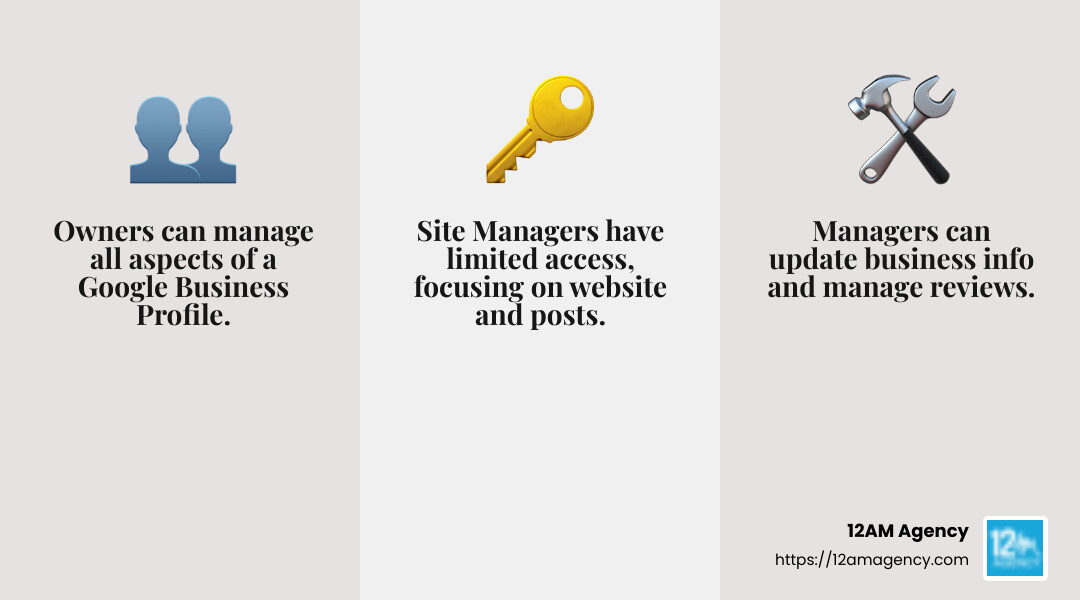
The Primary Owner holds the highest level of access in a Google Business Profile. While multiple owners can exist, there can only be one primary owner. This role is crucial because the primary owner cannot remove themselves from the listing until they transfer their ownership. They have the power to manage all aspects of the profile, including adding or removing users and making critical changes to the business information.
Owner
An Owner shares many of the same privileges as the primary owner but lacks the ability to remove the primary owner from the listing. Owners can manage user access, edit business details, and oversee the profile’s overall settings. This role is ideal for someone you trust to have significant control over your business’s online presence.
Manager
A Manager has substantial capabilities but with some restrictions. Managers can edit most business information, respond to reviews, and manage photos. However, they cannot add or remove users or delete the business profile. This role is perfect for day-to-day operations, allowing someone to keep the profile updated and engage with customers without risking major changes.
Site Manager
The Site Manager role is more limited. Site managers can manage photos and respond to reviews, but they cannot edit the business information. This role suits individuals who need to interact with customers or update visual content but shouldn’t have access to sensitive business details.
See exactly where your profile stands right now.
Our GBP audit shows your current rank position across your market, how your profile completeness scores against competitors, and the specific gaps holding you back from the Map Pack.
Understanding these roles helps you assign the right level of access to your team members, ensuring your Google Business Profile is managed efficiently and securely.

This structured approach not only protects your business information but also supports a consistent and engaging online presence.
Next, we’ll dig into the conditions for transferring primary ownership and how to handle this critical process smoothly.
How to Manage Users in Google Business Profile
Managing users in your Google Business Profile is a straightforward process that involves adding, removing, and changing user roles. This ensures the right people have the right level of access to your business information.
Adding Users
To add users to your Google Business Profile, you first need to invite them. Here’s how:
- Sign in to your Google Business Profile.
- Steer to the specific location you want to manage.
- Click on Users from the menu.
- In the top right corner, click the Invite new managers icon.
- Enter the email address of the user you’d like to add.
- Choose the appropriate role: Owner, Manager, or Site Manager.
- Click Invite.
The invitee will receive an email invitation to join your profile. Once they accept, they will have access based on the role you assigned.
Removing Users
If you need to remove a user from your profile, follow these steps:
- Go to the Users section in your Google Business Profile.
- Find the user you wish to remove.
- Click the X next to their name.
- Confirm the action when prompted.
This revokes their access immediately, ensuring your business information remains secure.
Changing User Roles
Changing a user’s role is simple and can be done at any time. Here’s how:
- Access the Users section of your profile.
- Locate the user whose role you want to change.
- Click on their current role and select the new role from the dropdown menu.
- Confirm the change.
When assigning roles, consider the permissions each role entails. Owners can manage user access and edit business details, while managers handle day-to-day operations and site managers focus on customer interactions.
By understanding how to manage users effectively, you can maintain control over your Google Business Profile and ensure it stays updated and secure.
Next, we’ll explore the conditions for transferring primary ownership and the steps involved in this important process.
Conditions for Transferring Primary Ownership
Transferring primary ownership of a Google Business Profile is a process that requires careful attention to Google’s specific conditions. This ensures that your business account remains secure and avoids unintended changes.
Existing Owners Only
One of the key conditions is that primary ownership can only be transferred to an existing co-owner. This means you cannot transfer primary ownership to a manager or site manager. This restriction helps maintain control within a trusted circle of users who already have significant access to the profile.
The Seven-Day Rule
If you add a new user as a co-owner, they must wait at least seven days before they can become the primary owner. This seven-day rule acts as a security measure, ensuring that new users have been vetted and are familiar with the business operations before taking on the primary ownership role.
Initiating the Transfer Request
The current primary owner must initiate the transfer of primary ownership. This is done through the Google Business Profile interface by selecting the new primary owner from the list of users. To do this, steer to the Users section of your profile, choose the co-owner you want to promote, and initiate the transfer request.

Acceptance by the New Primary Owner
Once the transfer request is made, the new primary owner must accept it. This acceptance is typically done through an email notification sent by Google. The transfer of ownership happens immediately upon acceptance, allowing the new primary owner to manage user roles and other aspects of the profile.
By following these steps and understanding the conditions for transferring primary ownership, you can ensure a smooth transition and maintain the integrity of your Google Business Profile.
Next, we’ll dive into some frequently asked questions about user management to further clarify this process.
Frequently Asked Questions about User Management
Can More Than One Person Manage a Google Business Account?
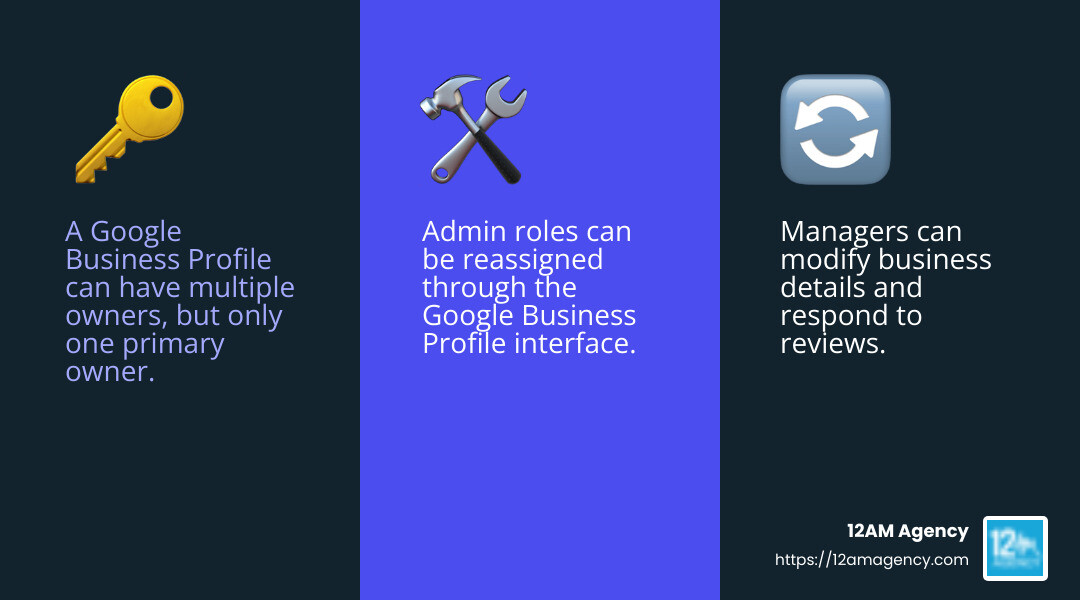
Absolutely, multiple people can manage a Google Business Profile. Each listing can have several owners, but only one primary owner. The primary owner has the ultimate control, while other owners share similar capabilities without the ability to remove the listing or manage access. This setup allows businesses to distribute responsibilities without compromising security.
What Can a Manager Do on Google Business Profile?
This is the work we do for you. Every week, without exception.
Managing GBP at this level takes 6–8 hours a week when done right. Nova handles the entire system — posts, photos, reviews, Q&A, citations, heatmap tracking — so you can focus on running your business.
Managers play a crucial role in maintaining the Google Business Profile. They can modify details such as business hours, address, and contact information. Importantly, managers can also manage reviews. This involves responding to customer feedback, which is vital for maintaining a positive online reputation and engaging with customers effectively. However, managers cannot remove the listing or change user roles.
How Do I Change the Admin on Google Business?
To change the admin, you need to assign the admin role to another user through the Google Business Profile interface. Steer to the Users section, find the person you wish to promote, and assign them the desired role. The Google Admin Console can be useful for managing roles across multiple profiles, especially for larger organizations with extensive listings.
By understanding these aspects of user management, you can effectively control access and maintain the integrity of your Google Business Profile.
Conclusion
At 12AM Agency, we understand the importance of effectively managing your Google Business Profile. It’s not just about setting it up and leaving it. It’s about continuous engagement and optimization. Our team specializes in digital marketing and branding, ensuring your business stands out.
We provide personalized, results-driven strategies custom to your unique needs. Whether it’s through SEO, PPC, or website design, our goal is to improve your online presence and drive growth. If you’re looking to improve your local SEO and manage your Google Business Profile efficiently, we can help.
Managing users in your Google Business Profile is crucial. It allows you to assign roles, maintain control, and ensure your business information is always up-to-date. This not only boosts your visibility but also builds trust with your customers.
If you’re ready to take your digital marketing efforts to the next level, contact us at 12AM Agency. Let us help you harness the power of Google Business Profile and achieve measurable success.

